


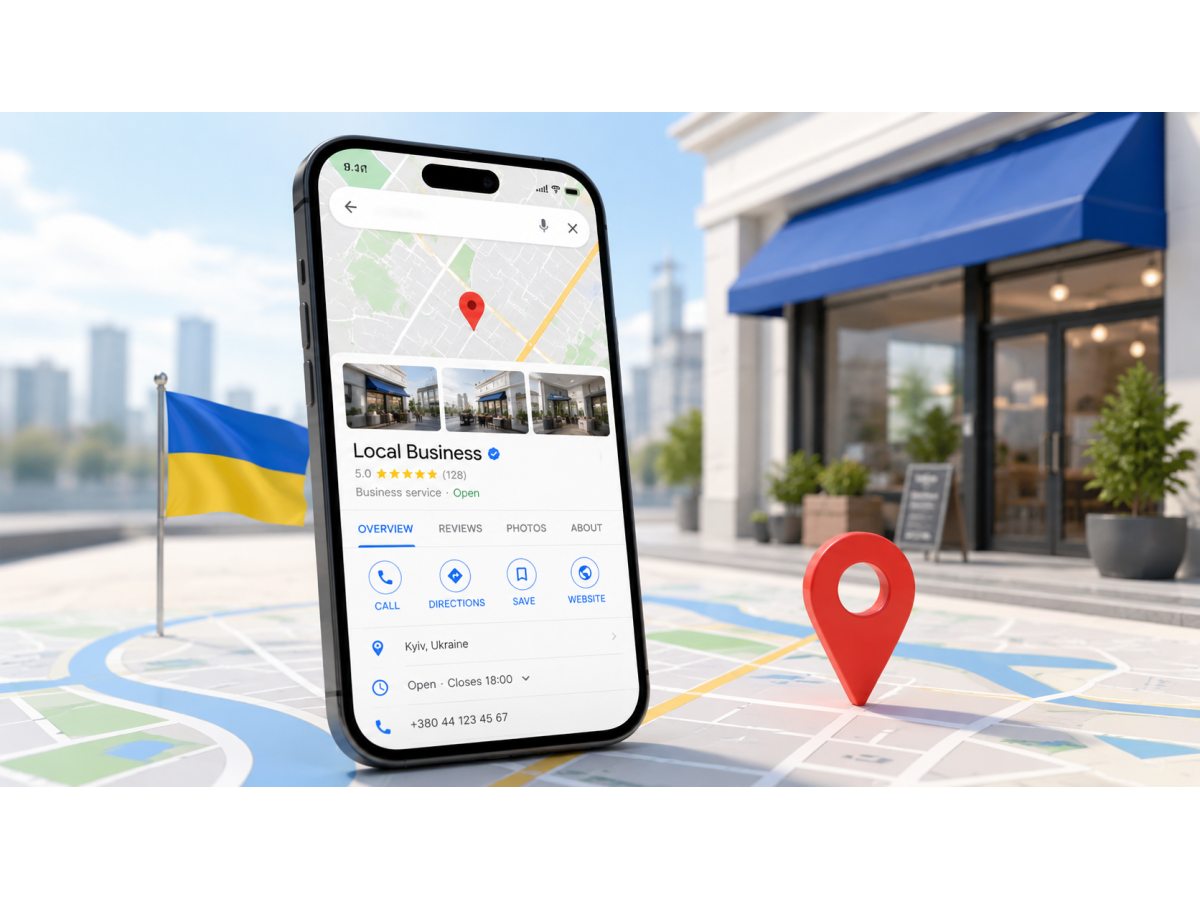
Google Maps for business is more than a location pin. For a local company, it is one of the first contact points between your business and a potential customer. A well-configured Google Business Profile helps users find your address, check opening hours, call your company, get directions, read reviews and visit your website before making a decision.
Business owners search for this process in different ways: how to add a company to Google Maps, register a business on Google Maps, Google Maps for businesses, Google map for business or add my company to Google Maps. The goal is the same: create or claim a business profile, verify ownership and fill it with accurate, useful information.
What is Google Maps for business?
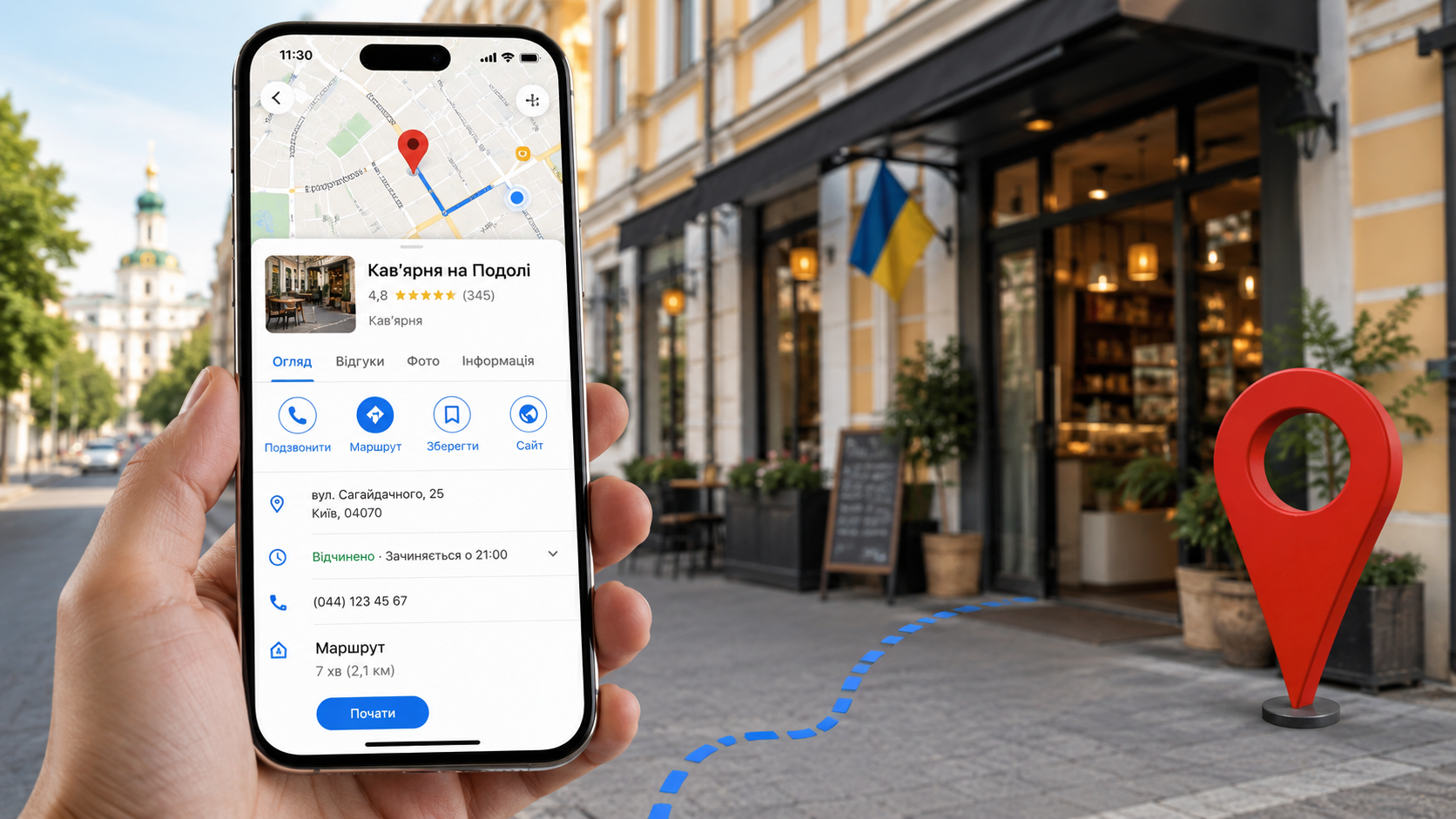
Google Maps for business is connected with Google Business Profile — a company profile that appears in Google Search and Google Maps. It can display your business name, address, phone number, website, working hours, photos, services, products, reviews and directions.
For local companies, this profile often works as a compact landing page inside Google. A user can compare businesses without opening several websites: they see the distance, rating, review quality, photos, opening status and available contact options. That is why simple registration is not enough — the profile must be accurate, complete and regularly updated.
Who should register a company on Google Maps?
Adding a business to Google Maps is useful for any company that serves customers in a specific city, area or region. It is especially important when location, reputation and fast contact influence the customer’s decision.
- Local businesses: cafes, clinics, salons, repair shops, service centers, stores, showrooms and offices.
- Service providers: repair, delivery, installation, cleaning, legal, medical, educational and B2B services.
- Online stores: if they have a pickup point, office, warehouse, showroom or local order collection.
- Companies with branches: each location should have a separate profile to avoid confusing customers.
- New businesses: Google Maps helps build initial local visibility and collect early trust signals.
How to add your company to Google Maps: step-by-step guide
Before you register your company on Google Maps, prepare accurate business data. Google checks whether the company information is consistent, real and relevant: name, address, category, website, phone number, photos, service area and business activity.
- Sign in to a Google account. Use a business account that can be managed by the owner or responsible employee.
- Open Google Business Profile. Start creating a profile or search for your company in Google Maps if it already exists.
- Enter the real business name. Do not add extra keywords, city names or promotional phrases if they are not part of the official brand name.
- Select the main business category. This affects which local searches your profile can appear for.
- Add an address or service area. If customers visit your location, add the address. If you visit customers, set up the service area.
- Add contact details. Include a working phone number, website and accurate opening hours.
- Complete verification. Google may offer verification by video, phone, SMS, email or another available method.
- Optimize the profile after verification. Add services, description, photos, products, attributes, questions and regular updates.
What to prepare before creating a Google Maps business profile
The more accurate your data is from the start, the lower the risk of verification issues, duplicate profiles or ranking problems. This is especially important for companies that work from an office, warehouse, coworking space, store, showroom or provide services at the customer’s location.
| What to prepare | Why it matters | What to check |
|---|---|---|
| Business name | It should match your brand, website and official business data | Do not add keywords, city names or advertising phrases to manipulate rankings |
| Address or service area | Google needs to understand where your business operates | The address must be real, accessible and connected with your business activity |
| Phone number and website | Customers use them to contact you directly from Search or Maps | Contact details should match the information on your website and external listings |
| Real photos | Photos build trust and may support profile verification | Use real images of your location, entrance, team, work process or products |
| List of services or products | It helps users quickly understand whether your company matches their needs | Group services by user intent: repair, delivery, consultation, sales, installation |
If your company is already on Google Maps
Before you add your company to Google Maps, check whether a profile already exists. Sometimes Google creates listings automatically based on websites, directories, user suggestions or previous owners. In this case, creating a new profile is usually not the right move — you should claim the existing business profile.
Duplicate profiles can damage local visibility. Reviews may be split between listings, addresses may conflict, users may see outdated information, and Google may struggle to identify which profile is the main one. If you find an old listing, request ownership, update the data and only then start optimization.
Common mistakes when registering a business on Google Maps
Most problems are not caused by the registration process itself, but by inaccurate or over-optimized information. Google evaluates the profile as part of a local trust system: website, map listing, reviews, mentions, photos, address and user behavior should all look consistent.
| Mistake | Why it is risky | Correct approach |
|---|---|---|
| Adding keywords to the business name | Profile edits may be rejected or the profile may face restrictions | Use the real brand name only |
| Using a virtual or random address | Verification problems and lower customer trust | Use a real address or set up a service area |
| Choosing the wrong category | The profile may appear for irrelevant searches | Choose the category that best describes your main service |
| Different phone numbers or addresses across the web | Inconsistent data reduces trust signals | Keep NAP data consistent: name, address and phone number |
| Creating a profile and leaving it inactive | Active competitors can outperform your listing | Update photos, services, hours, reviews and posts regularly |
How to optimize your profile after verification
Registration alone does not guarantee calls, visits or website traffic. After verification, the profile should answer the customer’s main questions: where you are located, what you offer, when you are open, how to contact you, whether customers can visit your location and what services are available.
Business description
The description should explain your specialization, service area and customer value. Avoid turning it into a keyword list. Write clearly: who you are, what problems you solve, where you work and how a customer can contact you.
Services and products
Add your main services with clear names. For an online store, use product categories. For a service business, add key directions of work. For B2B companies, list solution types. This helps Google understand profile relevance and helps users make a faster decision.
Photos and visual trust
Use real photos of your office, entrance, signboard, team, work process, products, warehouse or service area. Real visuals are stronger than generic stock images because they prove that the company exists and operates as stated.
Reviews and replies
Reviews influence trust and click-through rate. Do not buy fake reviews or encourage identical template comments. A better approach is to ask real customers for feedback after a completed service and reply to each review with a relevant answer.
What affects visibility in Google Maps?
After you register your company on Google Maps, local optimization becomes the next step. Visibility depends on profile relevance, distance to the user, business prominence, quality of profile completion, reviews, activity, brand mentions and consistency of business data on the website.
- Relevance: how well the category, services and description match the search query.
- Location: where the user is and which service area or address your company has added.
- Reputation: the number, quality and freshness of reviews, plus owner responses.
- Data consistency: matching business name, address and phone number across the website and external listings.
- Profile activity: regular updates of hours, photos, services, posts and customer questions.
- Website connection: relevant landing pages, local SEO signals, structured data and clear contact information.
When should you ask specialists for help?
You can add a company to Google Maps by yourself if the business structure is simple: one address, one owner, a clear category and no duplicate profiles. However, mistakes may lead to verification delays, profile restrictions or poor visibility compared with competitors.
Professional help is useful if you have several branches, duplicate listings, previous suspensions, an address change, a service-area business without a public office, or if you want Google Maps to work together with full SEO promotion and local search strategy.
How SEO-Expert helps businesses with Google Maps
SEO-Expert works with local visibility as a complete system: not only creating or claiming a Google Maps profile, but also preparing it for real competition in local search. This means fewer technical mistakes, clearer business data and a stronger connection between your website, Google Maps profile and local search demand.
- We check for duplicate profiles, old listings and address conflicts.
- We select the main and additional categories based on real search demand.
- We prepare service structure, descriptions and local landing page logic.
- We align NAP data: business name, address, phone number, website and opening hours.
- We help format the profile without keyword spam in the name or description.
- We analyze Google Maps competitors in the target city or niche.
- We create a strategy for reviews, updates and ongoing profile activity.
Practical takeaway
To add your company to Google Maps, create or claim a Google Business Profile, enter accurate data, choose the right category, complete verification and fill the profile with useful information for customers. For stable results, the profile should not be left inactive. It needs optimization, updates, reviews and a clear connection with your website.
For local businesses, Google Maps is often the first place where a potential customer evaluates the company. If the profile is accurate, complete and trustworthy, it can generate calls, directions, website visits and qualified leads from local search.
FAQ
Can I add my company to Google Maps for free?
Yes. Creating a Google Business Profile is free. You only pay for additional services if you hire specialists for setup, optimization, SEO or ongoing management.
How can I add a company to Google Maps without an office?
If your company visits customers and does not receive visitors at a physical location, you can set up a service area. Avoid using a random or virtual address that is not connected with your business.
How long does Google Maps business verification take?
Creating the profile is usually quick, but verification may take longer. The timing depends on the verification method, data quality and whether the profile has any conflicting information.
What should I do if my company is already on Google Maps?
You should claim ownership of the existing profile instead of creating a duplicate. After access is approved, update the contact details, hours, description, photos, services and website.
Why can Google refuse to verify a business profile?
Common reasons include an inaccurate address, keyword stuffing in the business name, wrong category, mismatched data on the website and profile, poor video verification or duplicate listing concerns.
Do I need to manage the profile after registration?
Yes. Update photos, services and opening hours, reply to reviews, add posts and monitor data accuracy. Inactive profiles usually compete worse than regularly maintained ones.
Want Google Maps to bring customers, not just show your address?
SEO-Expert can help you create, verify and optimize your Google Maps business profile for your niche and target location. We will check duplicates, categories, business data, website connection, reviews and profile structure.
Request a consultation — we will analyze your current Google Maps visibility and show what prevents customers from finding your company.